 2. CentOS 7重置root密码 中

In a CentOS server, the permissions of a regular user are restricted by the root (super administrator). Sometimes, it’s inconvenient to download and install software in CentOS, so you need to access the root (super administrator) user interface. However, you might occasionally forget the root user’s password, requiring a reset. There are many versions of CentOS, but the method to reset the root user’s password is similar across them—entering single-user mode to modify the root password.
Detailed Steps to Reset the Root Password
-
Restart the server. When the system loading screen appears, press the
ekey on your keyboard to enter edit mode.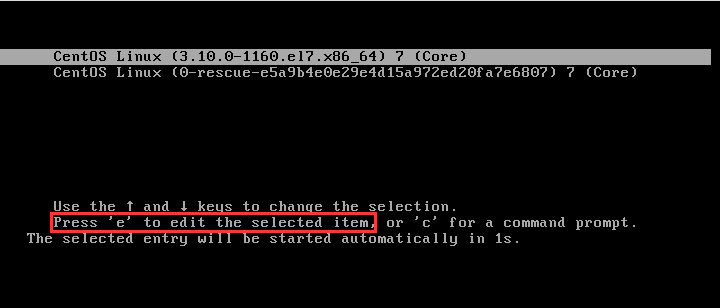
-
Move the cursor to find the line starting with
linux16. Delete from the end until you reachroand stop.
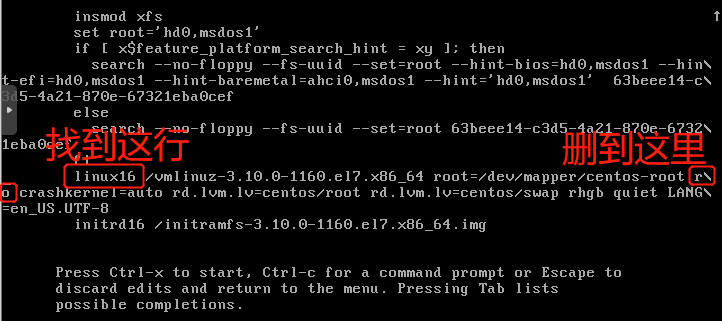
- Change
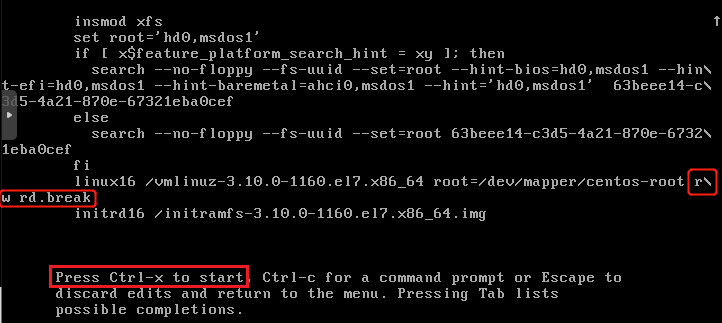
rotorw, add a space, then appendrd.break. PressCtrl+Xto boot.
Before modification: linux16 /vmlinuz-3.10.0-1160.e17.x86_64 root=/dev/mapper/centos-root ro crashkernel=auto rd.lvm.lv=centos/root rd.lvm.lv=centos/swap rhgb quiet LANG=en_US.UTF-8
After modification: linux16 /vmlinuz-3.10.0-1160.e17.x86_64 root=/dev/mapper/centos-root rw rd.break
Result as follows:
- Enter single-user mode.
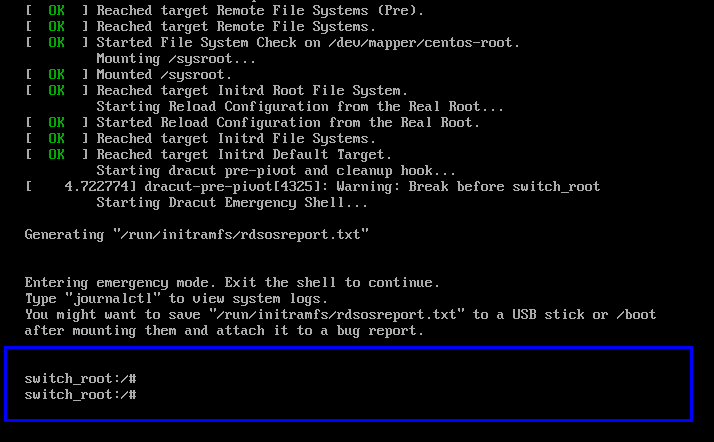
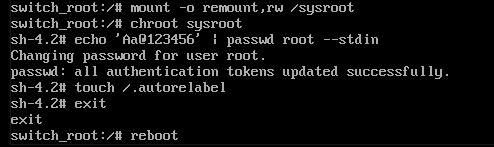
- Enter the following commands to remount the root directory and reset the root password (e.g., to
Aa@123456). Finally, reboot the system for the changes to take effect.
mount -o remount,rw /sysroot
chroot sysroot
echo 'Aa@123456' | passwd root --stdin
touch /.autorelabel
exit
reboot
Process as follows:
- After waiting for a while, when you return to the login interface, you can log in as root using the password you just set.